
Firefox Tips - These 7 tips make browsers safer and protect your privacy!
We have put together 7 Firefox tips, which ensure that you can be safe on the Internet and above all that your data is permanently protected.
 Chris Wojzechowski Geschäftsführender Gesellschafter
 Table of Contents (1 sections)
Mozilla Firefox is one of the most popular browsers. In order to protect your privacy and to be able to surf safely with Firefox you should know some tips. We have summarized the most important 7 tips for you.
Tips for the Firefox browser
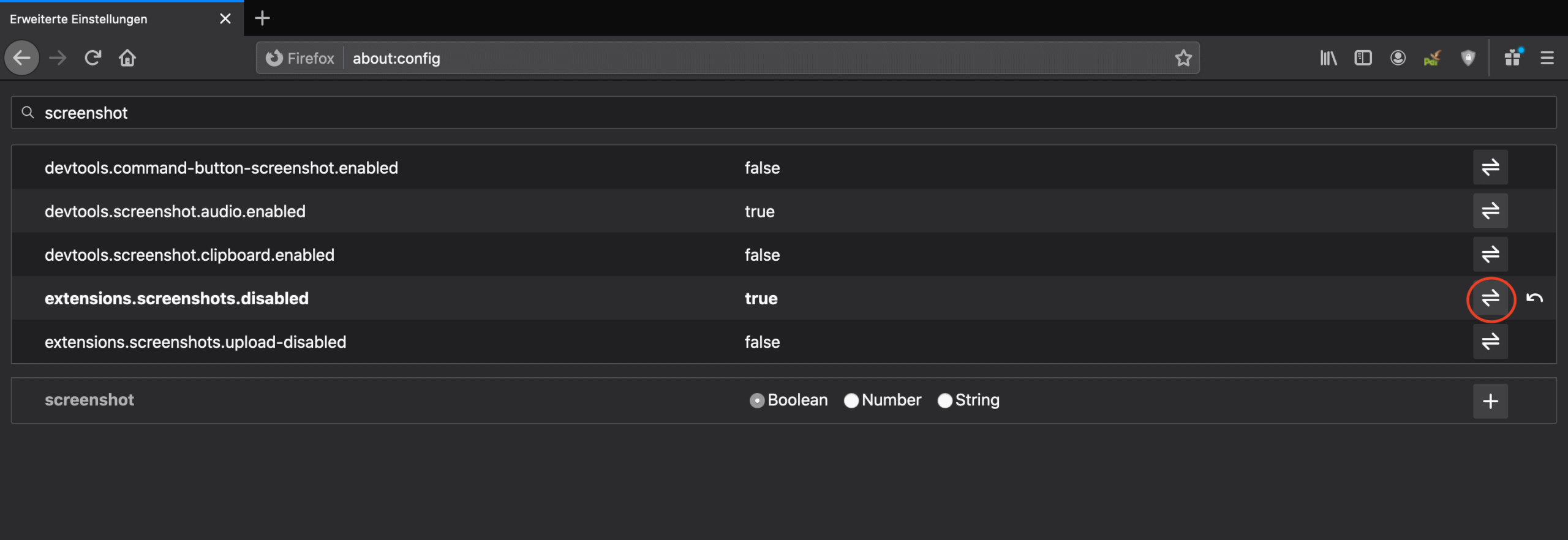
1. Disable Pocket API: The Pocket API is included by default in the Firefox browser. With this function you can save web pages to read them later. Saving the web page is done by storing data on a foreign cloud server. The function of Pocket can be handy, but you don’t need this app for this, instead you can use bookmarks without downloading the page and save it on your own computer. To disable the Pocket API, type “about:config” in the address bar of your Firefox browser. Now you have to find the line with the following expression: “extensions.pocket.enabled”. You have to set the value here behind to “false”, then the Pocket API is deactivated. 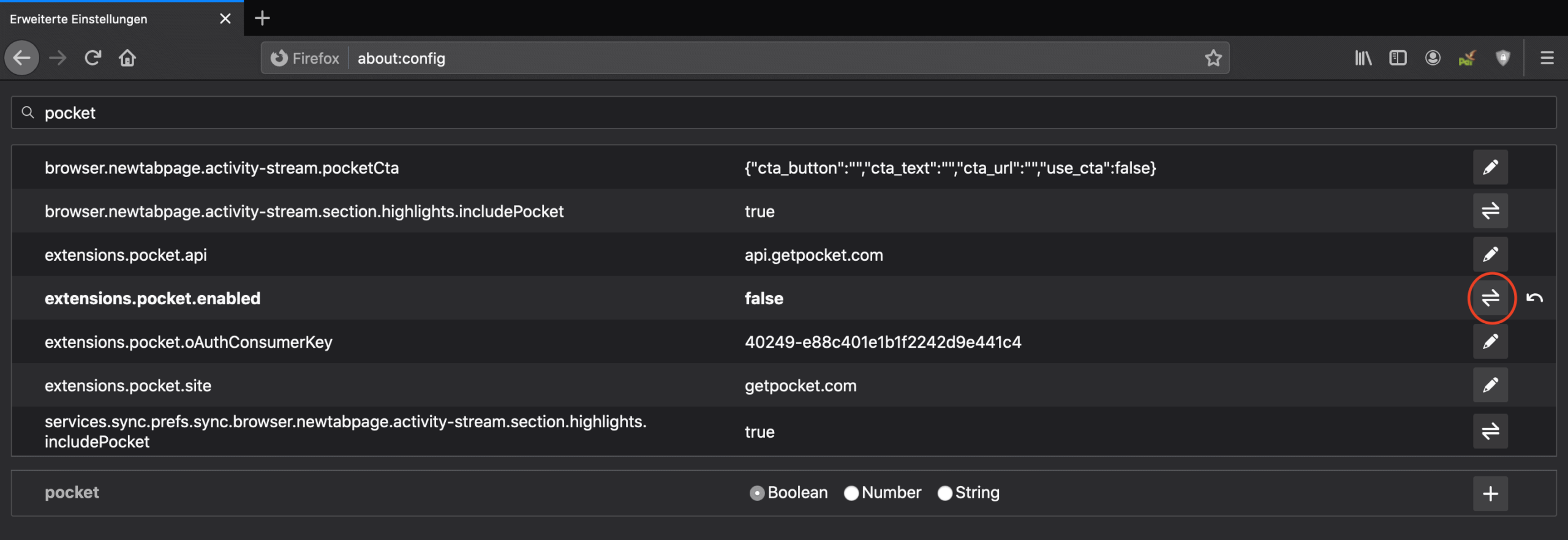 2. Screenshots switch off extension Very similar to the Pocket API, there is another tool that is pre-installed in the Firefox browser, which has no direct advantages. The Screenshot extension allows us to take screenshots of the website, or of specific sections of it. This function is also available through various other programs. The disadvantage of the Firefox extension is that the data, e.g. which area I am “screenshooting” or when I take a screenshot, is sent to a server for analysis. To disable the Screenshot extension you have to go back to the about:config page. Then search for the line: extensions.screenshots.disabled. Now you have to set the value behind it to true and thus deactivated the extension.
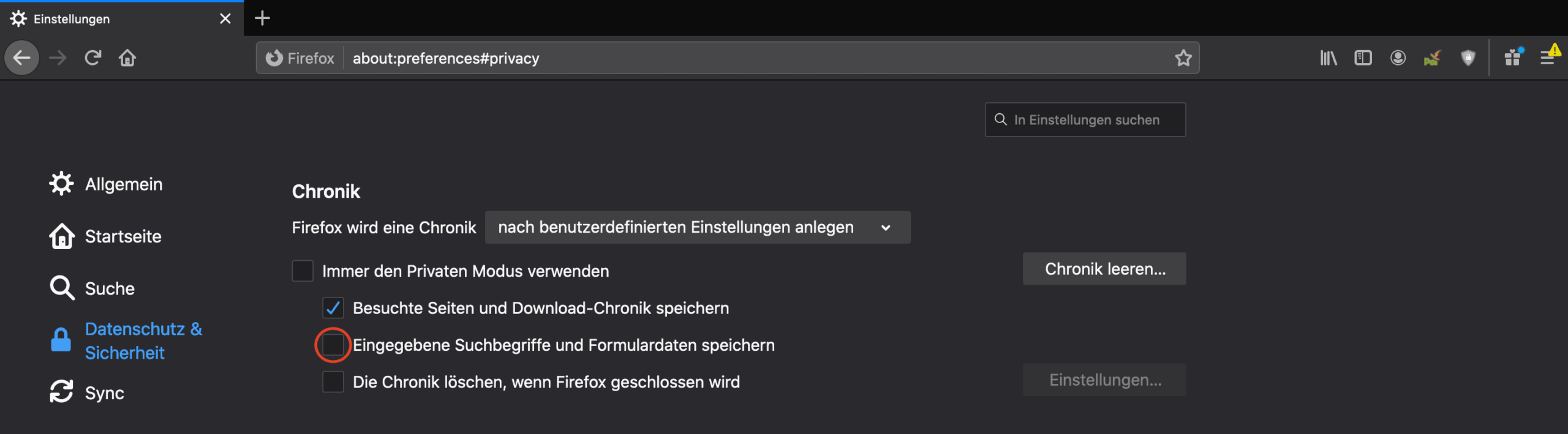
  3. Disable saving of forms Saving forms seems very practical at first glance. The danger here is that the Firefox browser remembers on which web pages you have entered where and above all what you have entered. If you log in on Facebook, for example, your browser will remember both the e-mail address and the password. The next time you visit the site, the correct one will automatically be suggested to you. The same function is available with a password manager, the big difference is that your password manager needs a password to reveal sensitive data, but the Firefox forms do not. To disable this function you have to open the page “about:preferences”. Then open the tab “Privacy and Security”. Next to the term “Chronicle” you have to specify: “Firefox will create a chronicle according to user-defined settings”. This opens up further setting options. Before the expression: “Save entered search terms and form data” you should make sure that the check mark is not set.
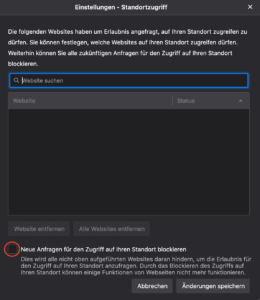
  4. Disable Geolocation API The next of our Firefox tips to protect your privacy is to disable the Geolocation API. This is also enabled by default and ensures that your browser knows where you are. When you open a map or navigation page, your browser usually already knows where you are. If you do not want to disclose such data, you should disable the Geolocation API. To do so, you must first open the page: “about:preferences”. Again, open the tab Privacy and Security. Next to the term “Location” you can click on “Preferences”, then another settings page will open. At the bottom of this page you can specify that “New requests for access to your location will be blocked”. Make sure that the check mark is set, then you have successfully deactivated the geolocation.
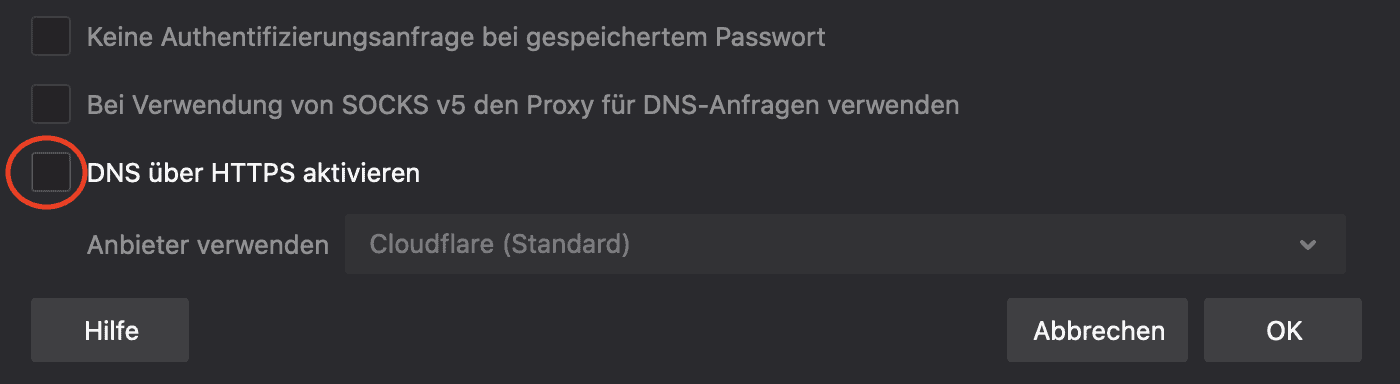
  5. DNS over HTTPS In your Firefox browser you can define that the DNS resolution, i.e. from a domain e.g. : “https://www.google.com/” to the corresponding IP address: “216.58.212.131” is encrypted. Usually when you enter a domain, it is transferred unencrypted and a third party can easily find out which pages you are visiting. To ensure that this DNS resolution is encrypted, you can send it encrypted via the HTTPS protocol. To do this you must first go to the page: “about:preferences”. At the very bottom of the page you will find the connection settings, here you can click on “Settings”. Now all connection settings will open, where you can configure your proxy. The last entry is the most important one here, because here you can specify that you want to use DNS over HTTPS by checking the checkbox. In addition, you have to determine with which provider you want to perform these encrypted DNS resolutions from now on.
  6. Disable speculative loading The Firefox browser already preloads pages that the user does not yet want to actively call up. As soon as you open a new web page, your browser preloads the various pages behind the links already once speculatively. This would allow you to access these linked websites much faster, but in the end your browser only creates unwanted connections to various pages. To deactivate this speculative loading, open the page: “about:config”. Then enter the following expression in the search field: “network.prefetch-next”. In the found settings you should now make sure that the value is set to “false” so that you have deactivated speculative loading.
  7. Disable safebrowsing There is a tool in the Firefox browser which is supposed to protect you from malware and phishing. Basically such a tool is a good idea to increase security. The big disadvantage of Firefox safebrowsing is that this tool is very poorly documented. There are several versions which partly make different statements. All have in common that the IP address of the user of this tool is stored. We recommend that you take care of the security yourself and do not rely on an opaque tool from the browser manufacturer. To deactivate safebrowsing you must first go to the page:” about:config”. Then search for the term “safebrowsing” and set the following values: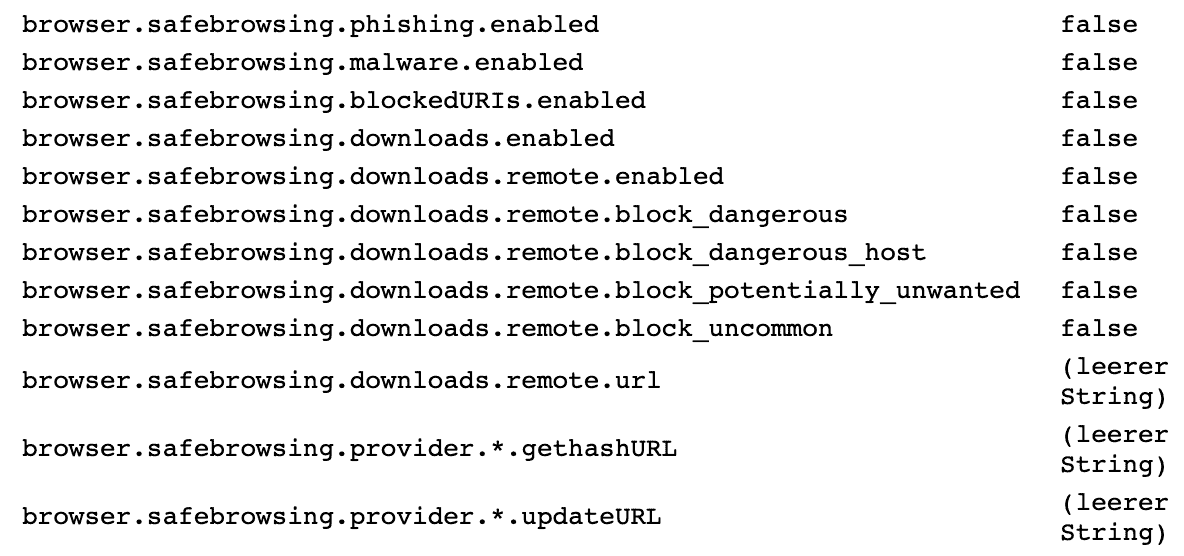
source: https://www.privacy-handbuch.de/handbuch_21n.htm In addition to these tips for protecting your privacy, there are many other ways to customize the Firefox browser to suit your needs. Besides a good documentation of the Firefox settings there are many add-ons that can be used for a penetration test for example.
Monthly Threat Report
Chris Wojzechowski bewertet einmal im Monat die aktuelle Bedrohungslage aus Sicht eines Informationssicherheitsexperten. Sein 30-köpfiges Team ist näher an realen Cyberbedrohungen dran als kaum jemand sonst — mit konkreten Handlungsempfehlungen, die Sie am nächsten Morgen umsetzen können.
Bestseller-Autor (Wiley-VCH) · M.Sc. Internet-Sicherheit · Bekannt aus Handelsblatt & WamS
Zuletzt behandelt
1x im Monat · Kein Spam · Jederzeit abbestellbar · Datenschutz
Next Step
Our certified security experts will advise you on the topics covered in this article — free and without obligation.
Free · 30 minutes · No obligation

